Managing Roles and Access in Alfie
Super Admin Role Management in Alfie provides the flexibility to create custom roles and assign specific access to features within the organization. This allows you to control what each team member can access and manage in the application.
How to Create and Assign Roles
Step 1: Navigate to Manage Users and Roles
- Log in as a Super Admin.
- Go to the Organization Settings and select Manage Users and Roles.
- In this section, you’ll see a list of all users and roles within the organization.
Step 2: Add a New Role
- Click on the Roles tab to view existing roles.
- Click the Add Role button to create a new role.
Step 3: Fill Role Information
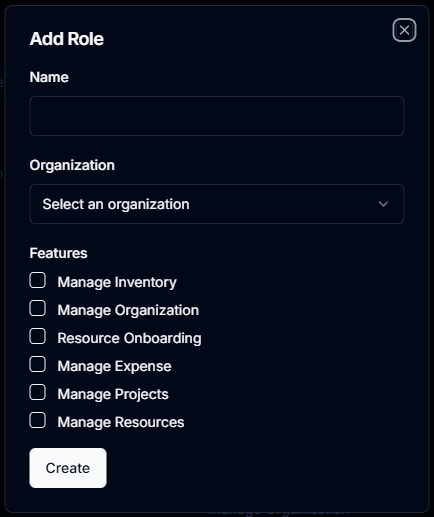
- Role Name: Provide a clear name for the role (e.g., HR Manager, Finance Manager, Inventory Specialist).
- Organization: Select the relevant organization for this role (if multiple organizations are managed).
Step 4: Assign Access to Features
- You’ll be presented with a list of checkboxes corresponding to different features within the app.
- Select the features that this role should have access to by checking the relevant boxes.
- For example, check the boxes for Resource Onboarding, Manage Inventory, or Generate Salary Slips, depending on the role’s responsibilities.
Step 5: Save the Role
- After selecting the desired features, click the Save button to finalize the role creation.