Adding a New Resource
To efficiently manage employees, referred to as Resources in the app, you can add and store their complete information securely. Follow these steps to add a new resource:
Step 1: Access the Add Resource Section
- Navigate to People > Manage People.
- Click the Add New button.
Step 2: Fill in Personal Information
Provide the following personal details:
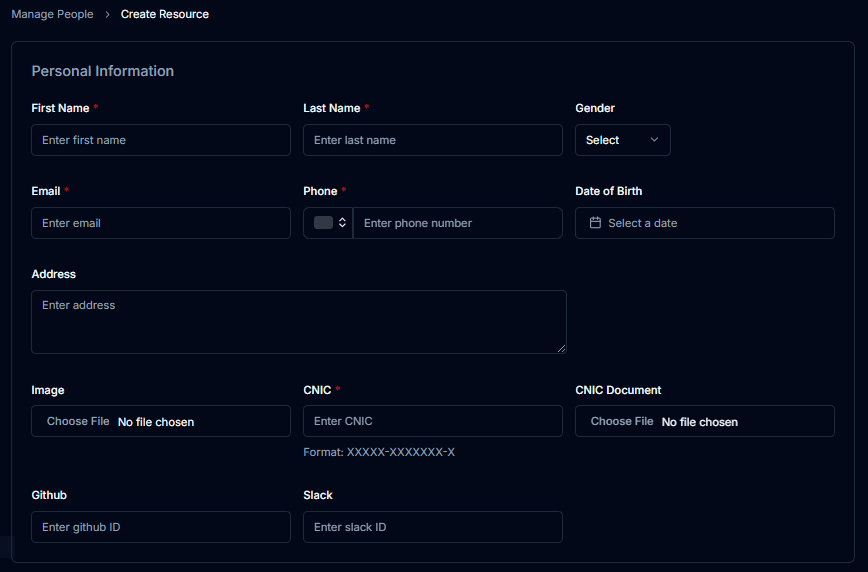
- Full Name: Enter the resource’s full legal name.
- Email Address: Provide a valid email address.
- Contact Number: Add a reachable phone number.
- CNIC Number: Input the official CNIC number.
- Address: Enter the complete residential address.
- Profile Picture: Upload a clear, recent photo.
Step 3: Specify Role Information
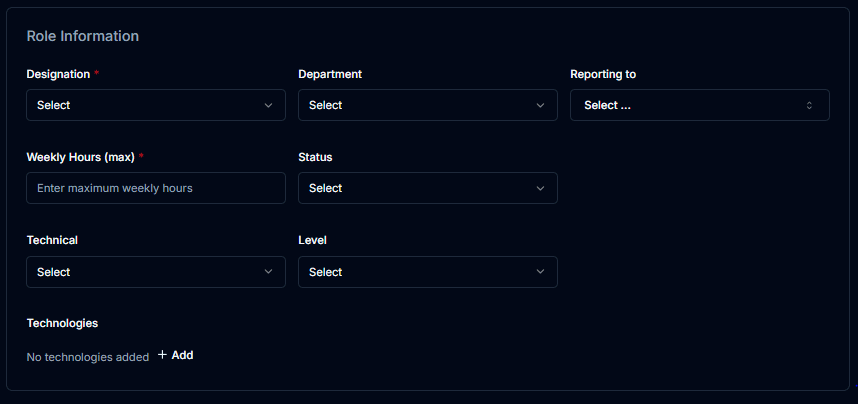
- Designation: Select the resource’s job title from the dropdown list.
- Reporting to: Choose the person under whom the resource will work.
- Working Hours: Define the number of hours the resource is expected to work per day.
- Status: Indicate if the resource is active or inactive.
- Level: Select the professional level (e.g., Junior, Mid, Senior).
- Technologies & Experience: Specify the technologies the resource is experienced in and their level of expertise.
Step 4: Add Contract Details
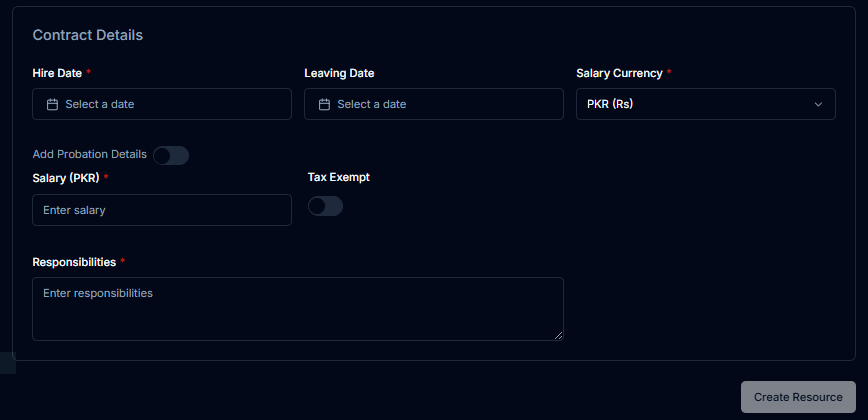
- Hiring Date: Select the date when the resource was hired.
- Salary Amount: Specify the agreed salary amount.
- Contract Signed: Add the signed contract for record.
Step 5: Create the Resource
- Review the entered details for accuracy.
- Click Create Resource to add resource into your organization.
Once saved, the resource’s data will be securely managed and available for future reference.
View and Edit the Resource
After saving, you can view the newly added resource’s complete profile, including all provided details. If any information needs to be updated or corrected, the app allows you to edit the resource’s data at any time. This ensures that your organization’s records remain accurate and up-to-date.