Inventory Management
The Inventory Management section helps you maintain an organized record of your organization’s inventory items. This guide explains how to add new inventory items to the system.
Add a New Inventory Item
Purpose
Create a new inventory record by providing detailed information about the item.
Steps
- Navigate to the Manage Inventory section in the application.
- Click the Add Inventory button.
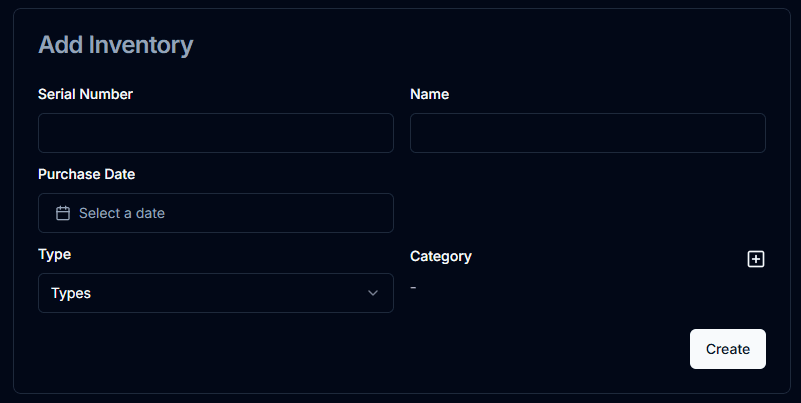
- Fill out the inventory form with the following details:
- Serial Number: Unique identifier for the inventory item.
- Name: Descriptive name of the inventory item.
- Purchase Date: The date when the inventory item was acquired.
- Type: Specify the type of inventory (e.g., electronics, furniture, tools).
- Category: Assign a category to the inventory item for better organization.
- Once all fields are completed, click the Create button.